Invoice Management
This guide explains how to manage invoices throughout their lifecycle in Fiskl — from editing drafts to cancelling sent invoices and tracking payments.
As you complete the fields in an invoice, the preview on the left of the screen updates in real time. This lets you see exactly how your invoice will appear to your client before you send it.
Fiskl updates invoice status automatically based on the due date and payments received.
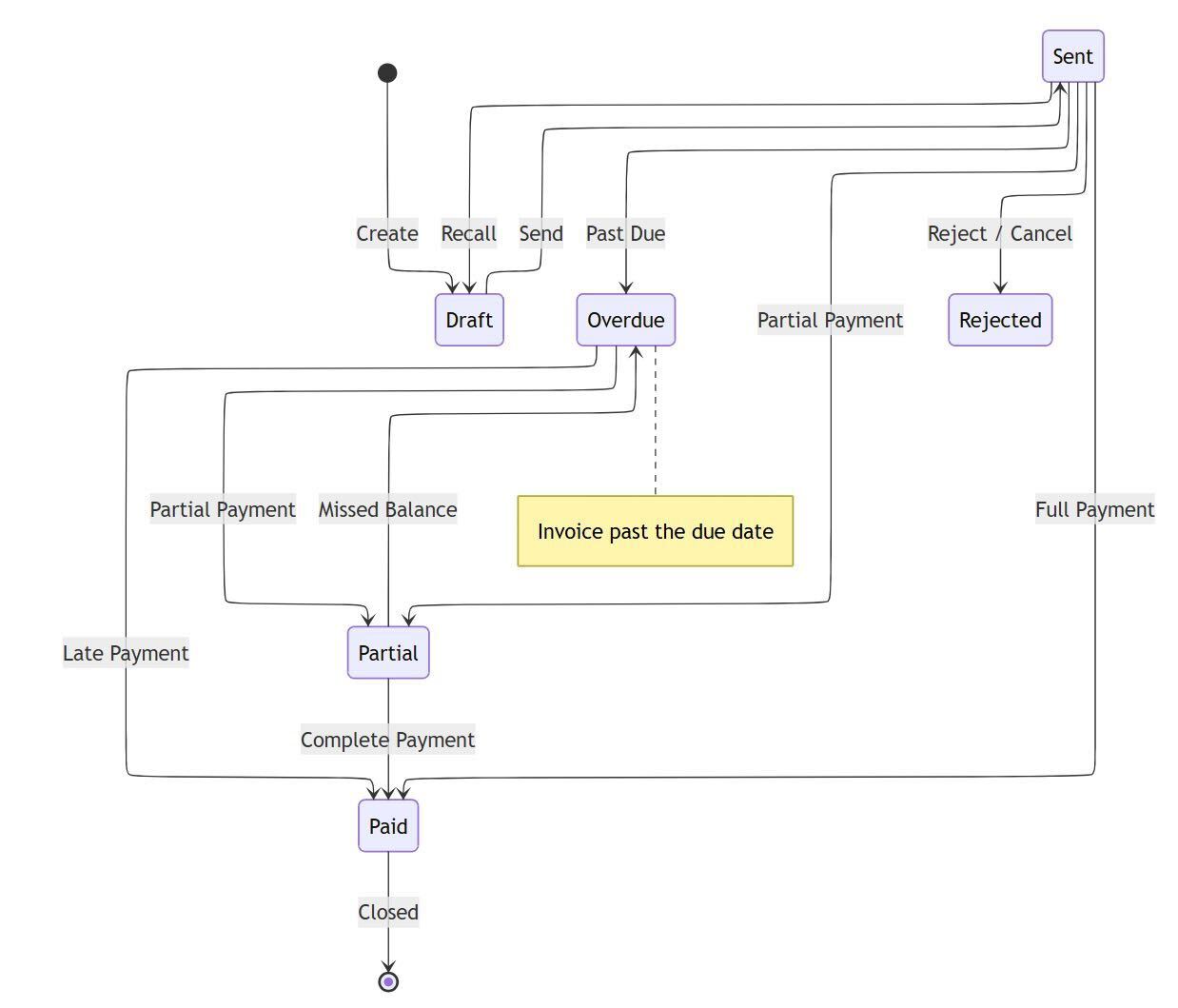
Draft Invoices
While an invoice is in Draft status, you can:
- Edit invoice details
- Configure email delivery settings
- Verify, update, or create payment methods
- Add attachments to include with the invoice
- Change the associated brand
- Add overdue reminders
- View history and payments
Draft invoices do not have a shareable link available.
Sent Invoices
There are two ways to mark an invoice as sent:
- Generate Share Link — marks the invoice as Sent and gives you a link to share manually via your preferred channel, such as a messaging app or email.
- Send by email — sends the invoice directly to your client and marks it as Sent automatically.
Once an invoice is sent, you can view its history, track payments, manage payment methods, and add or remove attachments.
If you did not set overdue reminders when you sent the invoice, open the overdue invoice, edit the email as needed, and select Resend. The overdue status appears automatically in the email subject line for your client.
Editing Sent Invoices
You can only edit invoices in Draft status directly. To edit a sent invoice:
- Open the invoice from your invoice list
- Select the current status and change it to Draft
- Make your changes
- Select Save
You can also add or remove payment methods and gateways while editing a sent invoice.
Editing a sent invoice temporarily disables existing payments. These are usually restored when you save. If you change invoice dates so that payment dates fall before the invoice date, payments may not restore correctly and overdue reminders could be triggered.
Editing Paid or Partially Paid Invoices
When your client pays using a payment gateway, Fiskl marks the invoice as Paid or Partial automatically. If you used a manual payment method, add the payment manually — once saved, Fiskl updates the status correctly.
To edit a paid or partially paid invoice:
- If the payment has been matched in Accounting, go to Accounting and unmatch the transaction first
- Open the invoice and change its status to Draft
- Make your changes and save
Once the invoice is sent or marked as paid again, Fiskl will automatch it in Accounting.
Paid vs Reconciled
An invoice marked Paid is not settled in your books until its payment is reconciled — that is, matched to a bank transaction in Accounting. Until then, your Accounts Receivable ledger and the Client Aging report still show the amount as owed.
This is why an invoice can read Paid while a client's balance in your books is still above zero.
How reconciliation status appears
On the invoice list, every Paid or Partial invoice shows a second line under its status badge:
- Not reconciled — The payment is recorded on the invoice but no bank transaction is matched to it. Your books still show the full amount as owed.
- Partially reconciled — Some payments on the invoice are matched to bank transactions and some are not.
- Reconciled — Every payment on the invoice is matched to a bank transaction. Your books agree with the invoice.
- Payment reconciled or Payment not reconciled — The same states on a Partial invoice, worded to avoid repeating "partial".
Credit notes and recurring invoice templates do not show this line.
Finding invoices that need reconciling
Above the invoice list, select the Needs reconciling tab. The list narrows to Paid and Partial invoices whose payments are not yet fully matched. Select All to return to the full list.
Selecting Not reconciled or Partially reconciled on an invoice row applies the same view.
Reconciling a payment from the invoice list
- Open the row menu for the invoice
- Select Reconcile payment
- Match the payment to the bank transaction on the Reconciliation screen
Reconcile payment is only available on invoices that still need matching. If it is greyed out, hover over it to see why — you need the accounting reconcile permission, and it is not available in Archive Mode.
Marked paid vs owed in your books
When you filter the invoice list to a single client, a summary appears above the list showing two figures side by side:
- Marked paid on invoices — Payments recorded on invoices, for the selected period
- Still owed in your books — The client's balance in your Accounts Receivable ledger as of today. Only bank-matched payments reduce it
When the two disagree, a note states the amount marked paid that is not yet matched to your bank. Select View AR aging to see the balance by age. The same summary appears on the client record under Invoice Statistics, where Show these invoices opens the invoice list narrowed to that client's unreconciled invoices.
Marked paid on invoices follows the period selected above the list. Still owed in your books is always as of today. Widen the period if older payments are missing from the first figure.
Cancelling Invoices
When you need to cancel an invoice, consider your invoice numbering sequence and any legal requirements in your region. Fiskl provides three options.
Option 1: Mark as Rejected (Recommended)
Changing the status to Rejected is the recommended approach for most situations.
- Open the invoice from your invoice list
- Select the current status
- Select Rejected from the dropdown
This option maintains a record of the invoice, preserves your invoice number sequence, and complies with legal requirements in many countries.
Option 2: Revert to Draft
Use this option if you need to make changes before re-sending.
- Open the invoice from your invoice list
- Select the current status
- Select Draft from the dropdown
Option 3: Delete the Invoice
Delete an invoice only as a last resort.
- Locate the invoice in your invoice list
- Select the dropdown options on the right
- Select Delete
Deleting an invoice permanently removes it from your records. This may create gaps in your invoice numbering sequence and may not comply with record-keeping requirements in some jurisdictions.
Consult your accountant or local tax authority about the correct way to handle cancelled invoices in your region.
Changing Invoice Status in Bulk
You can change the status of one or more invoices directly from the invoice list without opening each one.
- Select one or more invoices from the list
- Select Status
- Select the new status from the dropdown
Additional Actions
From the invoice list, you can print, duplicate, or delete invoices. Deletion is only available from the invoice list view.
Common Issues
Existing payments were not restored after editing a sent invoice
This can happen if you changed the invoice dates so that one or more payment dates fall before the new invoice date. Fiskl cannot restore payments in this situation.
To resolve this:
- Revert the invoice to Draft
- Correct the invoice date so it is earlier than all payment dates
- Save the invoice
If the issue persists, contact Fiskl support.
I cannot edit a paid invoice — the option to change status to Draft is greyed out
This usually means the payment has been matched to a transaction in Accounting. You need to unmatch it first.
- Go to Accounting
- Find the matched transaction and unmatch it
- Return to the invoice and change the status to Draft
My invoice says Paid but the client still shows a balance in my books
The payment is recorded on the invoice but not yet matched to a bank transaction, so your Accounts Receivable ledger still counts it as owed. The invoice shows Not reconciled under its status badge.
- Select the Needs reconciling tab above the invoice list
- Open the row menu for the invoice and select Reconcile payment
- Match the payment to the bank transaction
Once matched, the chip changes to Reconciled and the client's balance in your books drops by the payment amount. See Paid vs Reconciled.
Related Topics
- Creating Invoices — How to create and configure a new invoice
- Sending Invoices — Options for delivering invoices to your clients
- Invoice Payment Schedules — Set up payment schedules for large invoices
- Payments — Stripe Integration — Connect Stripe to accept card payments
- Accounting Overview — How Fiskl handles transaction matching and reconciliation
- Working with Accounts Receivable — How invoice payments reduce what your books show as owed