Trial Balance Report
This guide explains how to generate and analyze Trial Balance reports in Fiskl to verify your bookkeeping accuracy and prepare financial statements.
What is a Trial Balance Report?
A Trial Balance report lists all accounts in your general ledger with their debit or credit balances. It serves as a checkpoint to ensure the total of all debit balances equals the total of all credit balances, validating the mathematical accuracy of your bookkeeping.
Why is the Trial Balance report important?
The Trial Balance report is essential because it:
- Helps identify accounting errors and discrepancies
- Serves as a foundation for preparing financial statements
- Provides a quick overview of all account balances
- Assists in detecting unusual account balances or trends
Trial Balance vs. Other Financial Reports
The Trial Balance differs from other financial reports in important ways:
-
Trial Balance: A working document that lists all accounts with their debit or credit balances without categorization. It ensures your books balance mathematically.
-
Balance Sheet: Organizes accounts into assets, liabilities, and equity, providing a snapshot of your company's financial position at a specific point in time.
-
Profit and Loss (P&L) report: Shows income and expenses over a period, demonstrating your company's profitability.
Think of the Trial Balance as a behind-the-scenes check that helps create accurate Balance Sheets and P&L reports.
Key Components
Your Trial Balance report includes these main elements:
- Account names: All accounts in your general ledger
- Account numbers: The unique identifier for each account
- Debit column: Debit balance for each account
- Credit column: Credit balance for each account
- Total: The sum of all debits and credits, which should be equal
If the total debits don't equal the total credits, there's an error in your bookkeeping that needs to be identified and corrected.
Generating a Trial Balance Report
To create and customize your Trial Balance report:
-
Navigate to the reports section
Click Accounting in the left menu, then select Reports and choose Trial Balance.
-
Select your date
Choose your desired date using the date selector at the top of the page.
-
Customize the report
Use the available options to adjust your view:
- Switch between Cash and Accrual accounting methods
- Toggle Hide empty accounts to simplify the display
- Enable Divide by 1000 to make large numbers easier to read
- Show or hide unrealized foreign exchange gains/losses
Cash vs. Accrual Accounting
Fiskl offers both accounting methods for your Trial Balance report:
- Cash: Shows account balances based on when cash is received or paid
- Accrual: Records account balances when transactions are earned or incurred, regardless of when cash changes hands
Which method should I use?
Learn more about the differences between Cash vs Accrual accounting and how you can easily switch between them in Fiskl.
Analyzing Your Report
To get the most value from your Trial Balance report:
-
Verify the balance
Ensure that the total debits equal the total credits. Any discrepancy indicates a bookkeeping error.
-
Review account balances
Look for unusual or unexpected balances that may require investigation.
-
Compare periods
Identify significant changes in account balances over time to spot trends or anomalies.
-
Prepare financial statements
Use the Trial Balance as your starting point for creating your Balance Sheet and P&L report.
-
Investigate discrepancies
If you notice errors or imbalances, trace them back to the original transactions.
Click on any amount in the report to see a list of related transactions, helping you investigate specific entries.
Exporting and Sharing
You can export your Trial Balance report in multiple formats:
-
Export to spreadsheet
Click the export button at the top right of the screen and choose between Google Sheets or Excel format.
-
Create a PDF
Click the print button at the top right of the screen, then save as PDF or print a physical copy.
All exported reports include a date and time stamp, as well as the selected accounting method.
Adding Notes
To provide context or explanations for your financial data:
- Click the note icon at the top right of your screen
- Add your comments or explanations in the text field
- Click Save
These notes will be included when you export or print the report.
Example Export
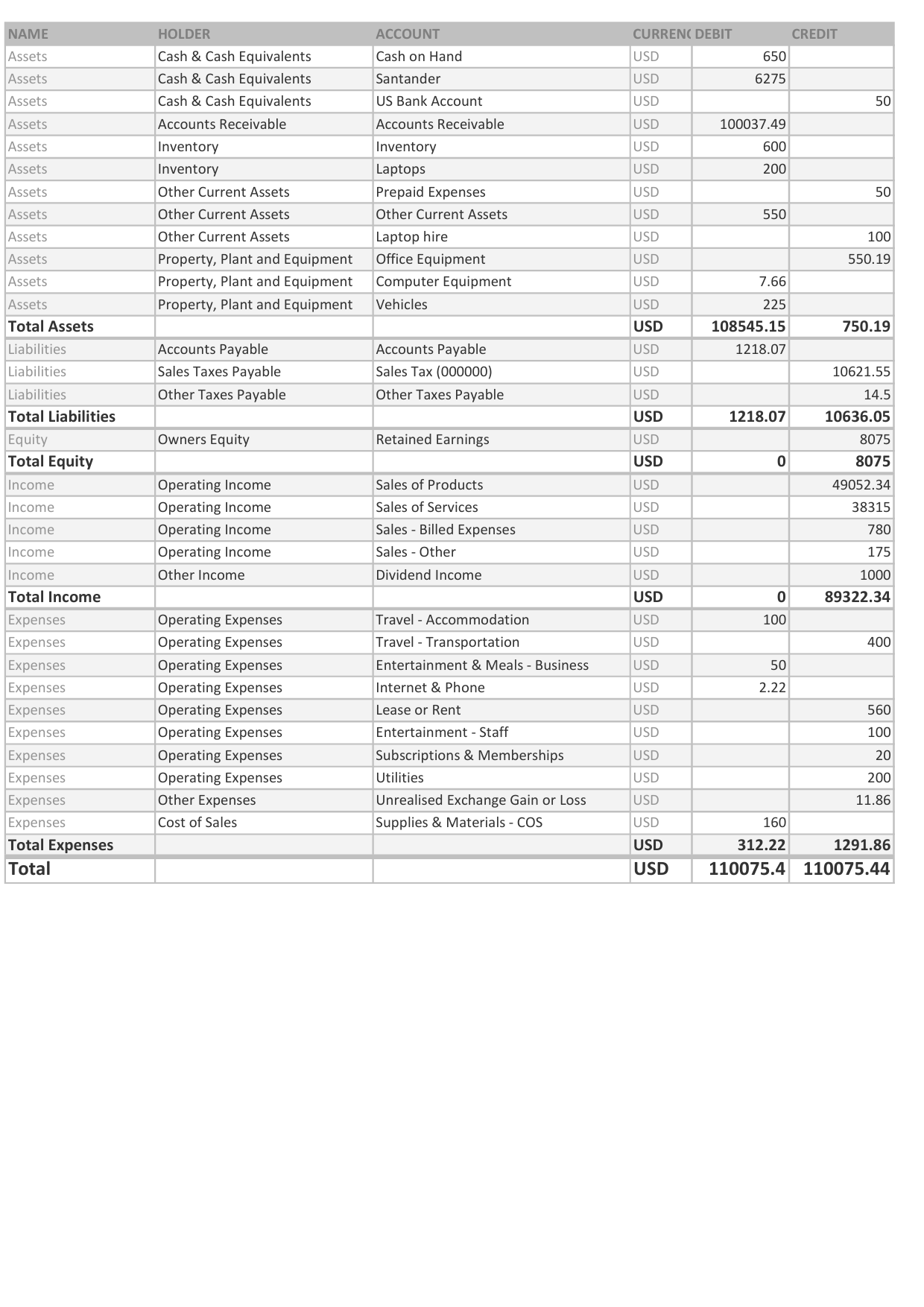
Below is an example of how your Trial Balance appears when exported to Excel or Google Sheets:
Review your Trial Balance report regularly to maintain clean books, identify potential issues early, and ensure a solid foundation for your other financial statements.